


Club Portal Login
Club’s can access their Club Portal by CLICKING HERE
Once inside the Club Portal administrators can register players and coaches, create teams and rosters as well as sign teams up for upcoming events.
For help with your Club Portal contact Veronica Sweeney.
how to's
Team Registration
Registering a team for an event only takes a minute but does require that you have teams created in your Club Portal. The steps below outline the process to create a team in your Club Portal. There are a few steps but most only take a second to input.
Step 1 – Log in through your Club Portal – CLICK HERE for your Club Portal Log In (contact Veronica if you’ve lost your username and password, or need one made)
Step 2 – Click “Roster Sheets” under the “Members/Team Sheets” section on the top left of the page. (See Screenshot – Roster Sheets 1)
.png)
Step 3 – If the team has already been created proceed to Step 9.
If the team hasn’t been created yet, click “Add” and set the “Create Roster For” tab to “Team” (See Screenshot – Roster Sheets 2)
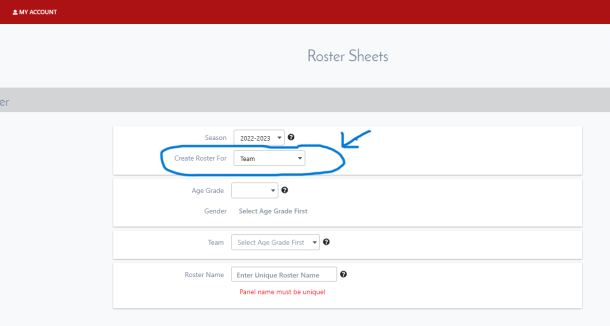
Step 4 – Select your “Age Grade”, this is the same as your team’s age category.
Step 5 – Beside “Team” select “Create New Team”
Step 6 – Enter your team name without the Club Name. Your individual team name will already include the Club name.
Step 7 – Beside “Roster Name” copy and paste your team name again.
Step 8 – Hit “Save” and you’re done
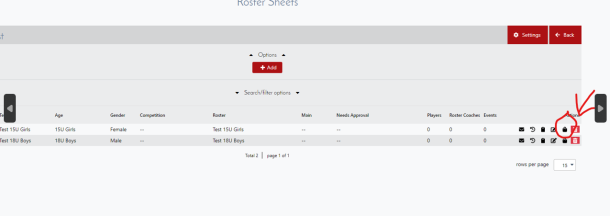
Step 9 – Register the team by clicking the little purse icon shown in the attached photo (See Screenshot – Roster Sheets 3).
Assigning Numbers and Coach Roles
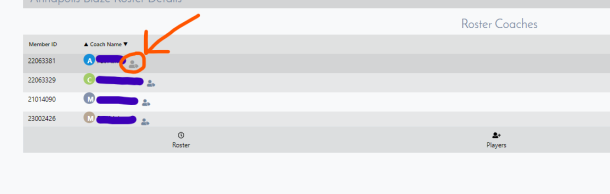
We are working toward using iSet to electronically record scores at NS Championships, but in order to do so, we need all players to have their jersey numbers listed, and coaches to be assigned as either a “Head Coach” or an “Assistant Coach” in Sportlomo. The process is straight forward and can be completed in one of two ways.
Option 1 – Done by Club Admin – Sign into Club Portal > Roster Sheets > Edit Team > Players or Coaches.
.png)
Edit Team
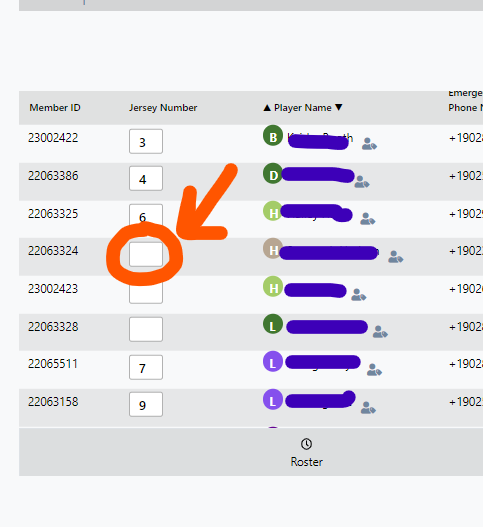
Option 2 – Done by the Team’s Coach. Sign into Public User Account > Toggle to the club > Roster Sheets > Edit
CLICK HERE for step-by-step instruction for individual coaches editing their own players numbers and coach roles.
Editing Rosters
Coaches assigned to a roster have the abilty to add numbers to players on their team’s roster.
Step 1, follow this link and sign in:: https://volleyball.canada.sportsmanager.ie/sportlomo/users/login
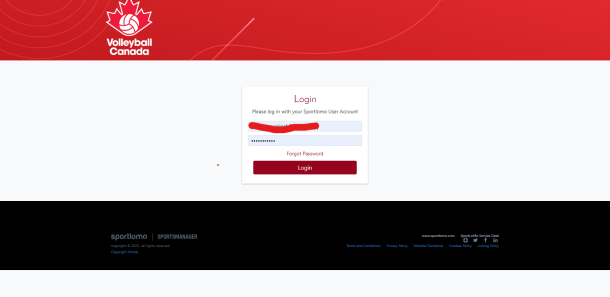
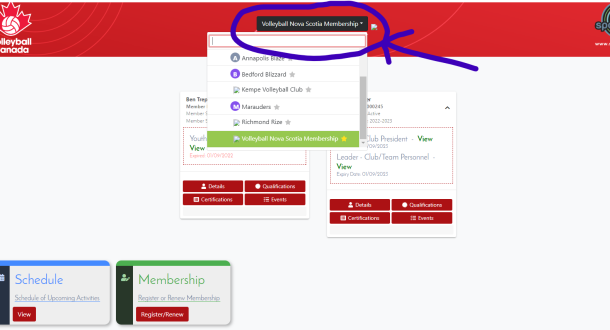
Make sure you are in the club view, use the toggle buttons on the top of your screen to get to your club view as shown in diagram below.
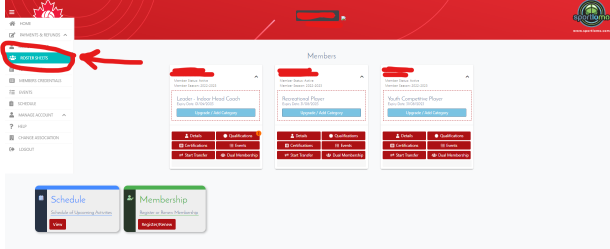
Click on “Roster Sheets” as shown in diagram below.
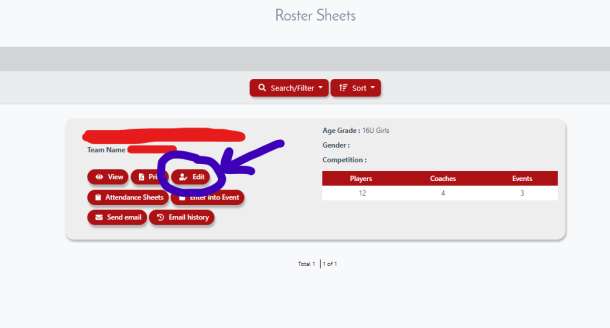
Click on the “Edit” as shown in diagram below.
Editing Rosters - Club Portal
Please follow these instructions to edit a roster.
Step 1 – Sign into your Club Portal by CLICKING HERE
Step 2 – Go to “Roster Sheets”. See below.
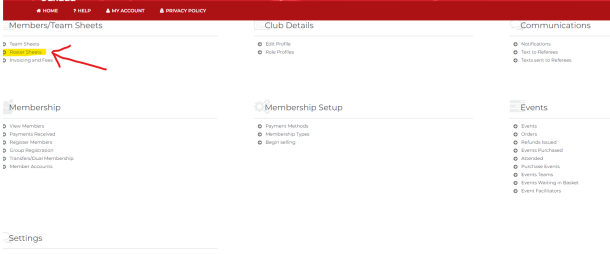
Step 3 – Click on the “Edit Roster” icon. At the bottom of the screen you have the option of editing either your players or coaches. Clink on the group you would like to edit. See below.
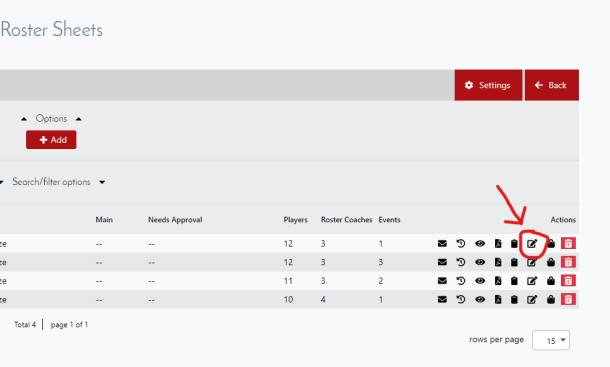
Step 4 – Click on the “Add” icon. See below.
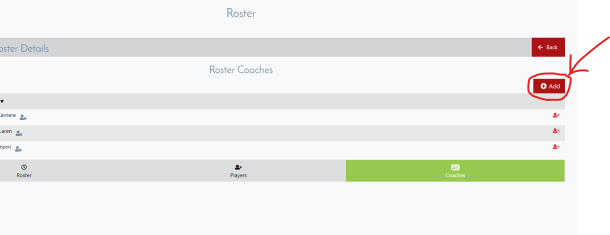
All age eligible “Active” members will appear appear and you will be able to hit the plus sign icon on the right hand side of the screen to add each player or coach.
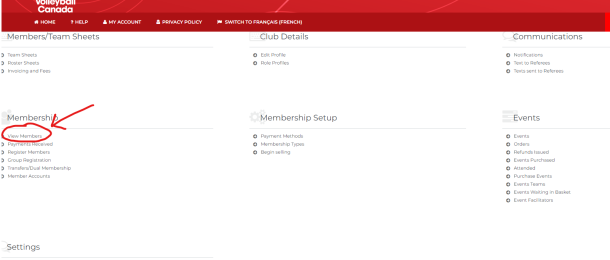
If the player or coach you are looking for is not showing up, it is likely becasue they have not “updated their information” to become “Active”. This can be checked in the “View Members” from inside the portal and searching the poeple under “Needs More Info”. See below.
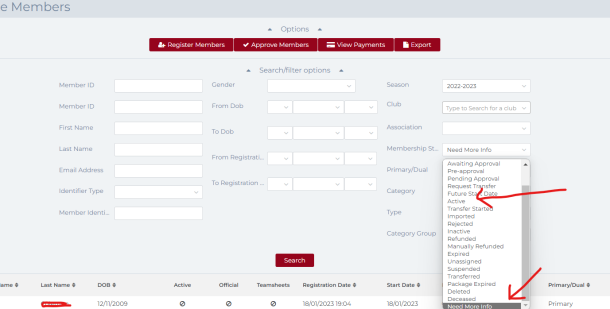
Click Here for more information about how to change a members status from “Needs More Info” to “Active”